 Moonwalk
 Connect Moonwalk to ChatGPT
The Moonwalk plugin lets ChatGPT work in your Moonwalk bases from a ChatGPT chat: read your boards and tables, write to them, build widgets and set up automations.
What it does
Moonwalk is a workspace of boards, tables, widgets, automations and files (overview). The plugin gives ChatGPT the same actions you have in the Moonwalk app, as tools it can call. Ask in plain words and ChatGPT picks the tools.
- Connecting once reaches every base you are a member of, and any you join later. Moonwalk's consent screen says so before you approve.
- Every tool call names the base it works in, and ChatGPT can list the bases you are in.
- Anything ChatGPT writes is recorded as yours, marked as made by ChatGPT, so the base's history shows who did what.
Who can use it
- Anyone with a Moonwalk account. Sign up at moonwalk.now.
- On ChatGPT Plus, Pro, Business, Enterprise or Edu. A free account cannot add one.
- ChatGPT reaches only the bases your own account is in. Each person connects with their own account.
Connect
From ChatGPT's plugin directory
Once Moonwalk is listed in ChatGPT's plugin directory, add it from there. Moonwalk opens and asks whether ChatGPT may use your bases. Sign in if asked, then press Approve.
With Developer mode
Until then, add Moonwalk yourself. It takes a few minutes.
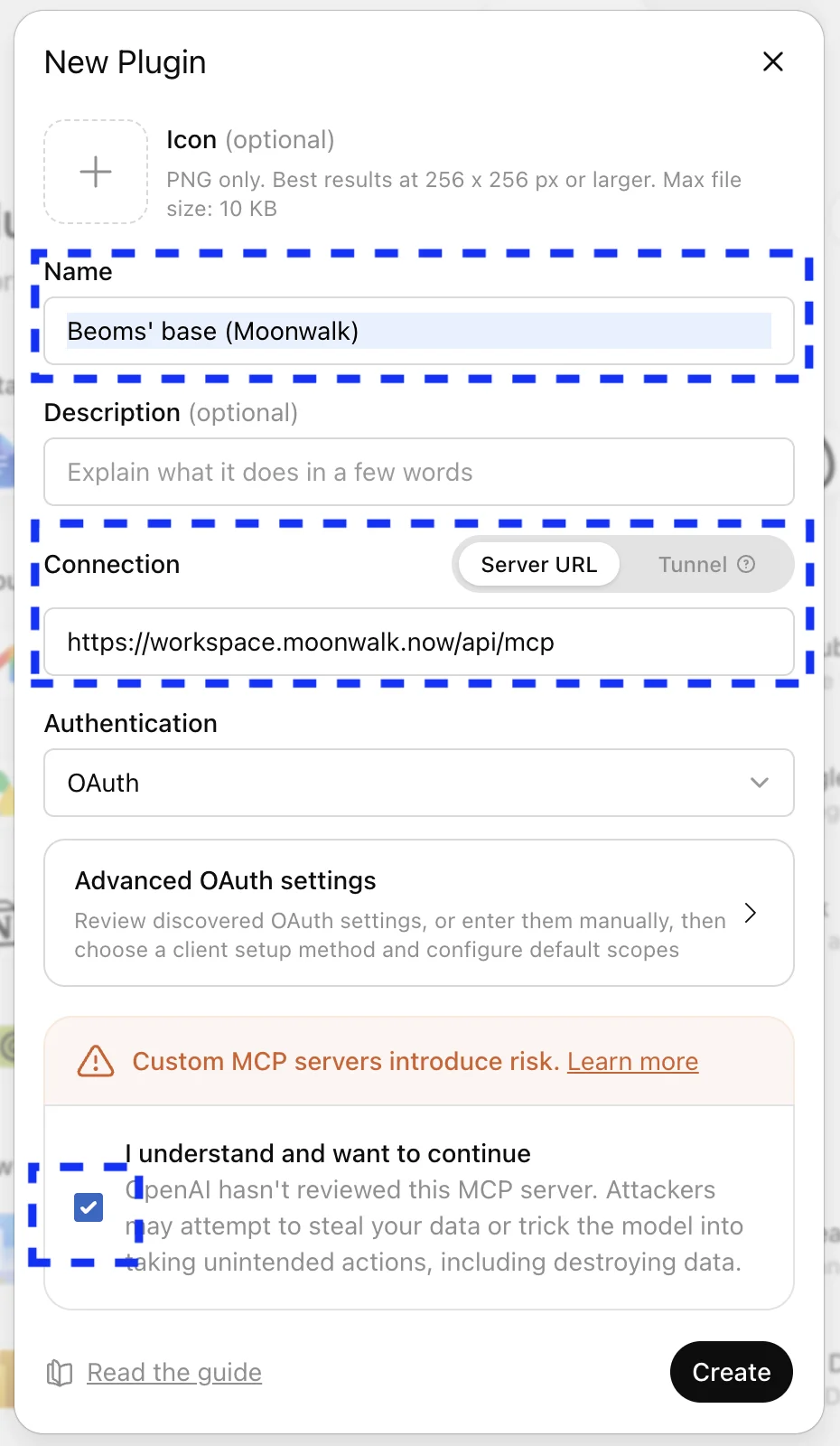
Name: Moonwalk
Connection (Server URL): https://moonwalk.now/api/mcp
-
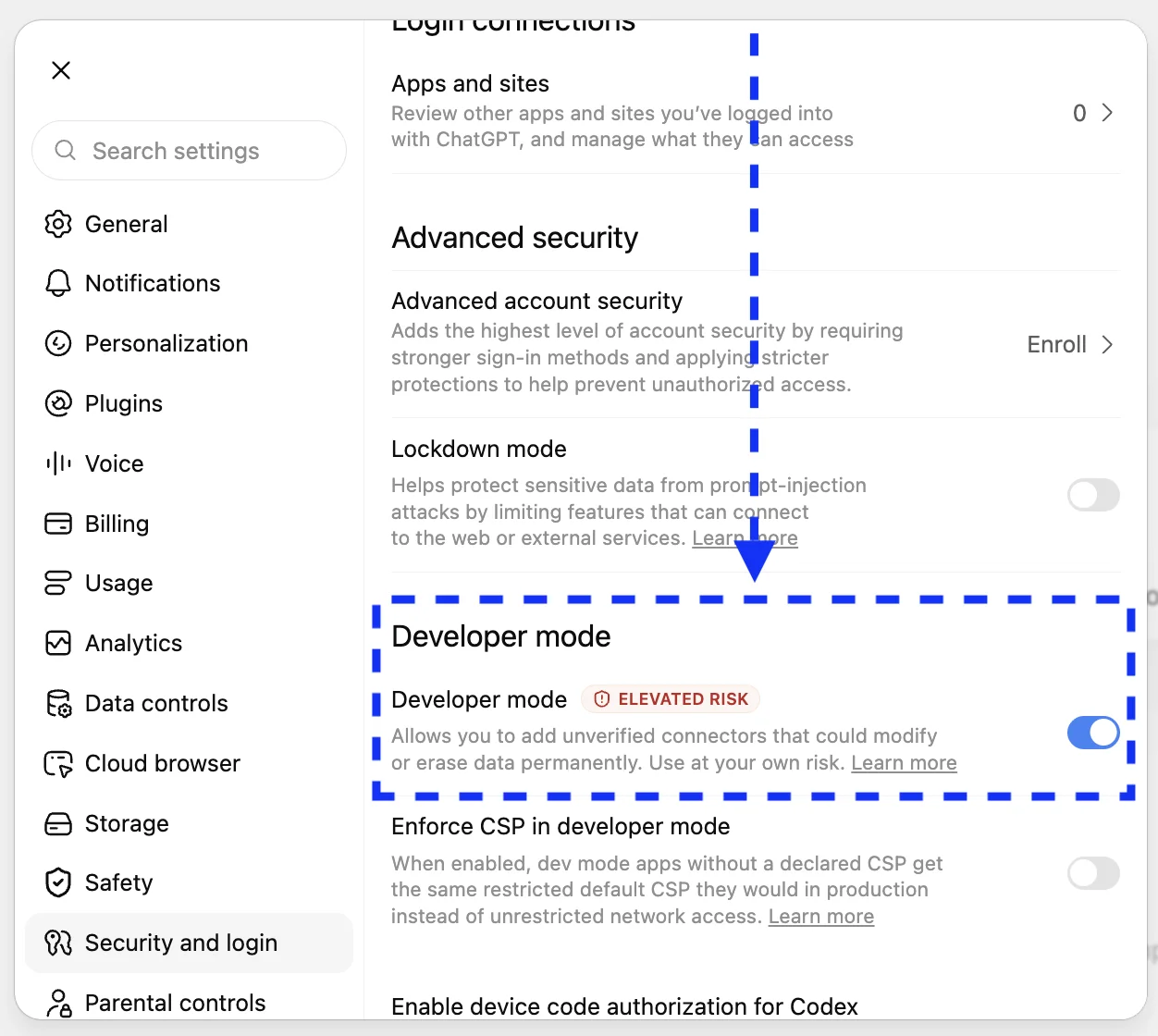
In ChatGPT, open Settings → Security and login and turn on Developer mode. Custom plugins don't appear in ChatGPT until it is on.
-
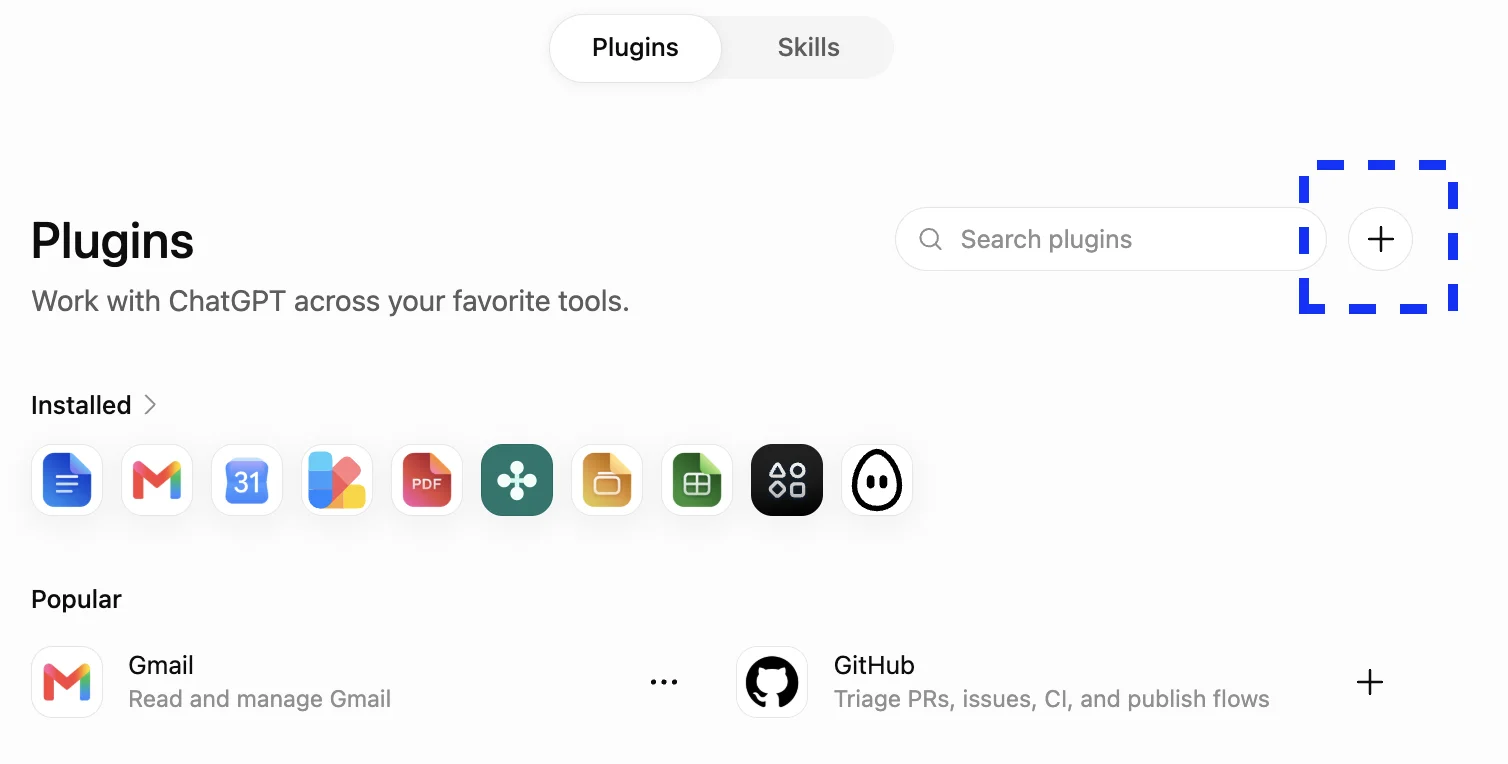
Open ChatGPT's plugins at chatgpt.com/plugins and press + at the top right.
-
In the New Plugin dialog, enter the name and the URL above in Name and Connection. Leave Authentication on OAuth. Tick I understand and want to continue, then press Create.
-
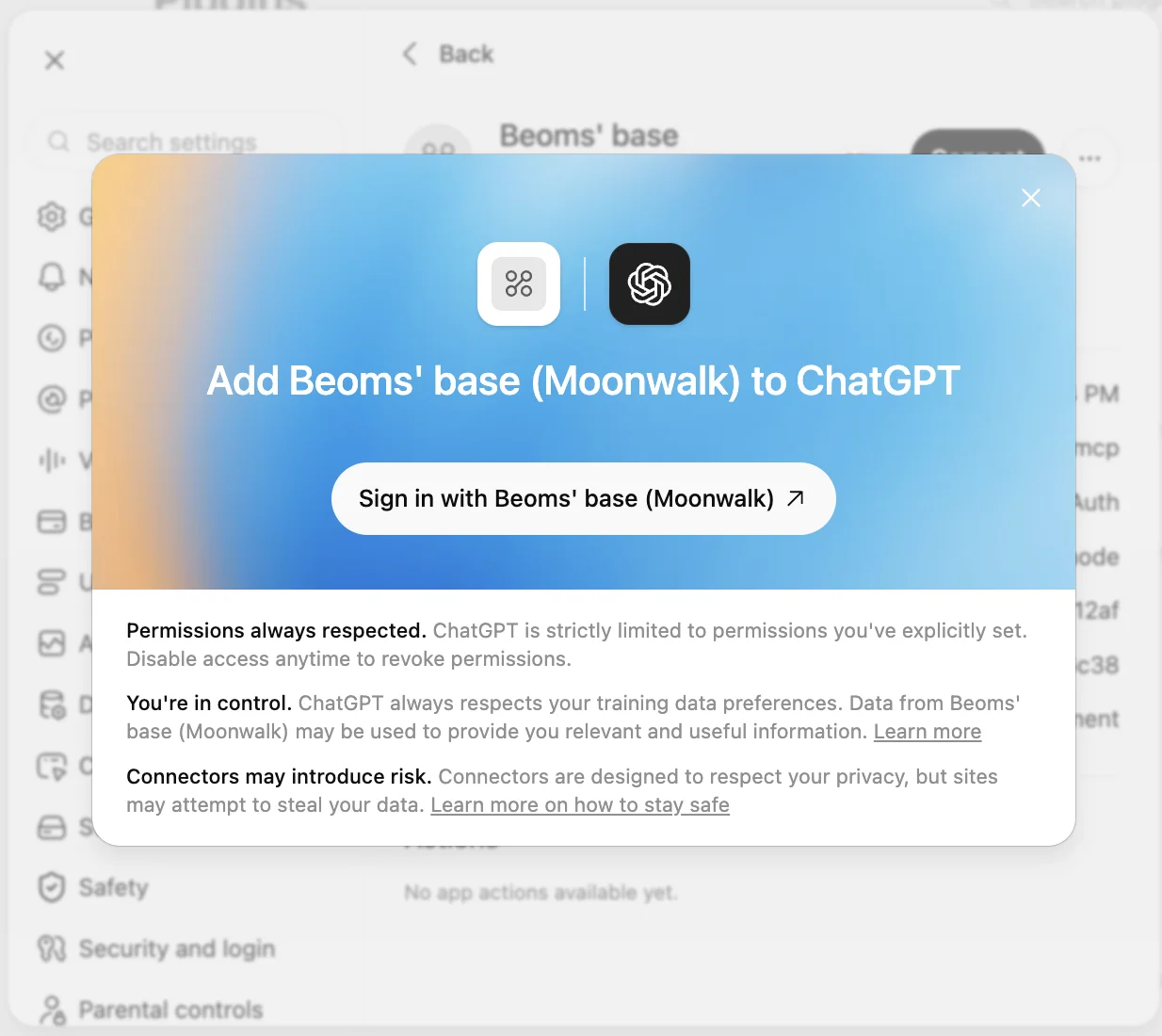
ChatGPT offers to add Moonwalk. Press Sign in with Moonwalk.
-
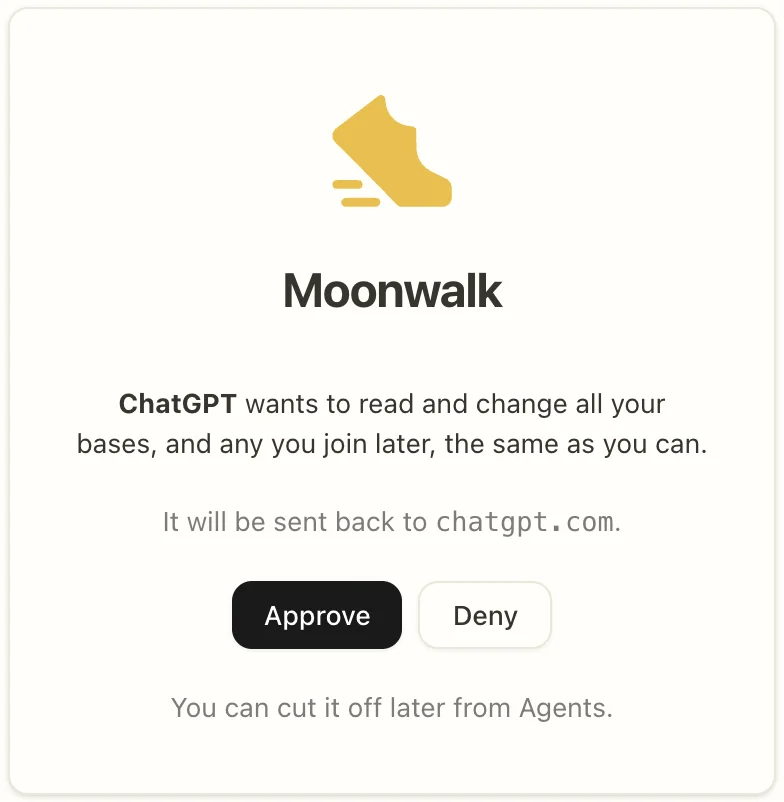
Moonwalk opens and asks whether ChatGPT may read and change all your bases. Sign in if asked, then press Approve.
-
Start a new chat and ask ChatGPT about your base. We recommend Work, at the top of a new chat.
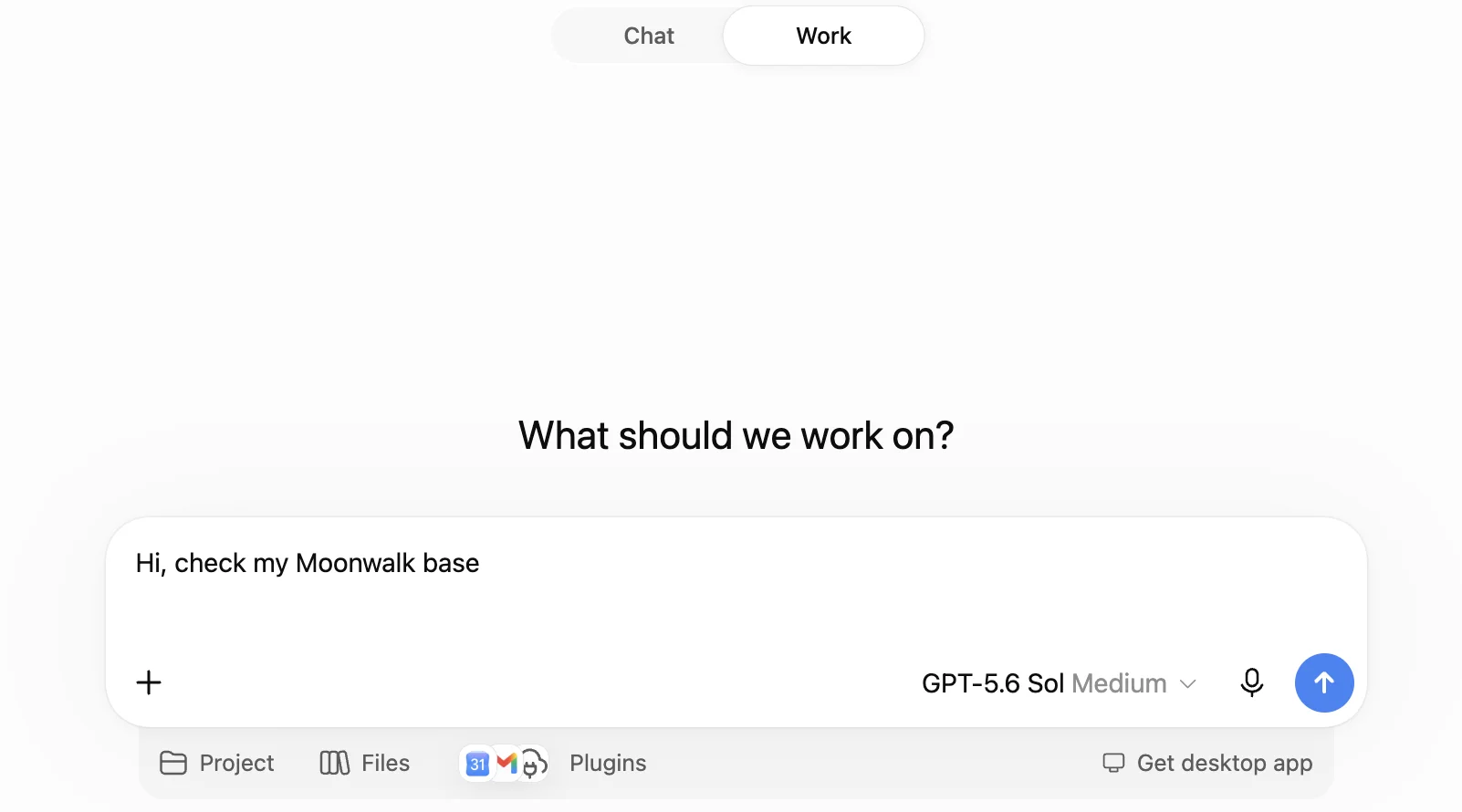
Captured on chatgpt.com in September 2026, under an earlier address and name. Type the name and URL shown above.
What ChatGPT can do
Each tool is labelled by what it does to your base: it reads, it adds something new, or it changes or removes something that is there.
| Area | Reads | Adds | Changes |
|---|---|---|---|
| Boards | List, open and search boards | Create a board, restore one from the trash | Edit, move, lock, publish or unpublish, delete |
| Tables | List tables, read rows, run read-only SQL | Create a table or column, restore one | Write rows, rename, change a column's type, delete |
| Widgets | List and open widgets, read their data and errors | Create a widget, restore one | Update, delete |
| Automations | List automations, their steps, settings and runs | Create an automation or a step, restore one | Edit steps and triggers, switch on or off, run one now, run a Python snippet, delete |
| Files | List, read and search files | Make a folder, upload a file, restore one | Write, edit, move, delete |
| Connections | List the base's connections and what an account can do | Ask you to add a connection | Attach one to an automation step, withdraw an ask, delete |
| Versions and undo | List past versions and open one | Revert to a version, undo the last change |
- ChatGPT never sees a password or an API key. It can ask for a connection, and you add the key or sign in to the account yourself, in Moonwalk.
- Running an automation, running a Python snippet and publishing a board can reach beyond your base: to the web, or to anyone with the board's link. These tools are labelled so.
- It cannot invite people, change who is in a base, or read or reset your Moonwalk sign-in or tokens.
Changes you can take back
- ChatGPT asks before a change. Tools that only read are labelled read-only, and ChatGPT treats every other tool as a write, which needs your confirmation by default. You can let it remember your answer for the rest of a conversation.
- Deleted things go to the trash for 30 days. A deleted board, table, widget, automation or file can be restored from its section's trash, by you or by ChatGPT. ChatGPT cannot empty a trash.
- Edits can be undone. An edit ChatGPT makes to a board or to table rows is one step of undo, so 400 changed rows come back at once. Boards, tables, widgets and automations also keep past versions you can revert to.
Example prompts
- “Check that Moonwalk is connected and tell me what you can see in my base.”
- “Make a table of this week's meetings with date, attendees and notes, and put it on a board called Weekly.”
- “Build an automation that fetches the top Hacker News stories every morning and saves them to a table.”
Your data
- Moonwalk sends ChatGPT only what a tool call returns: the board, rows or file ChatGPT asked for. What ChatGPT does with it follows OpenAI's own terms.
- Your base stays in Moonwalk. See the privacy policy and terms.
Disconnect
Either side cuts ChatGPT off at once:
- In ChatGPT, open Moonwalk on the Plugins page and disconnect or delete it.
- In Moonwalk, open Agents → Outside agents and press Revoke beside ChatGPT. This cuts it off from every base you are in.
Help
Write to support@moonwalk.now. Say which agent you connected and what you asked it.